The Ultimate Guide to Podcast Transcription on Windows 10/11
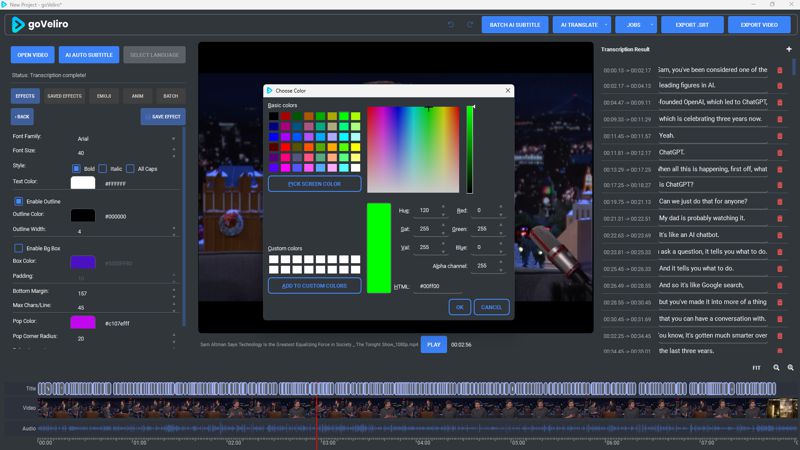
Podcast transcription has become much easier with modern AI. Instead of sending an audio recording to a transcription service and waiting for the result, Windows users can now run speech recognition directly on their own computer.
A good automatic subtitle generator for Windows can listen to the podcast audio, recognize the dialogue, and create properly timed captions. This is useful not only for YouTube videos but also for creating searchable transcripts and SRT files.
For podcasters working with long episodes, Podcast subtitle software can make the workflow much simpler. Rather than using a general video editor just to create captions, a dedicated application can focus on transcription, subtitle editing, and exporting.
One popular technology behind local transcription is OpenAI Whisper for Windows. Whisper-based speech recognition can handle different accents, voices, and longer recordings while running locally on compatible hardware.
The workflow is straightforward. Import the podcast video, start the transcription, review the generated captions, and export the result. The subtitle file can then be uploaded to YouTube or used in your video editing software.
A Windows-based workflow is particularly useful for creators who regularly transcribe long podcast videos. Instead of moving large files between different services, the original videos and generated subtitles can remain together in the same local workflow.
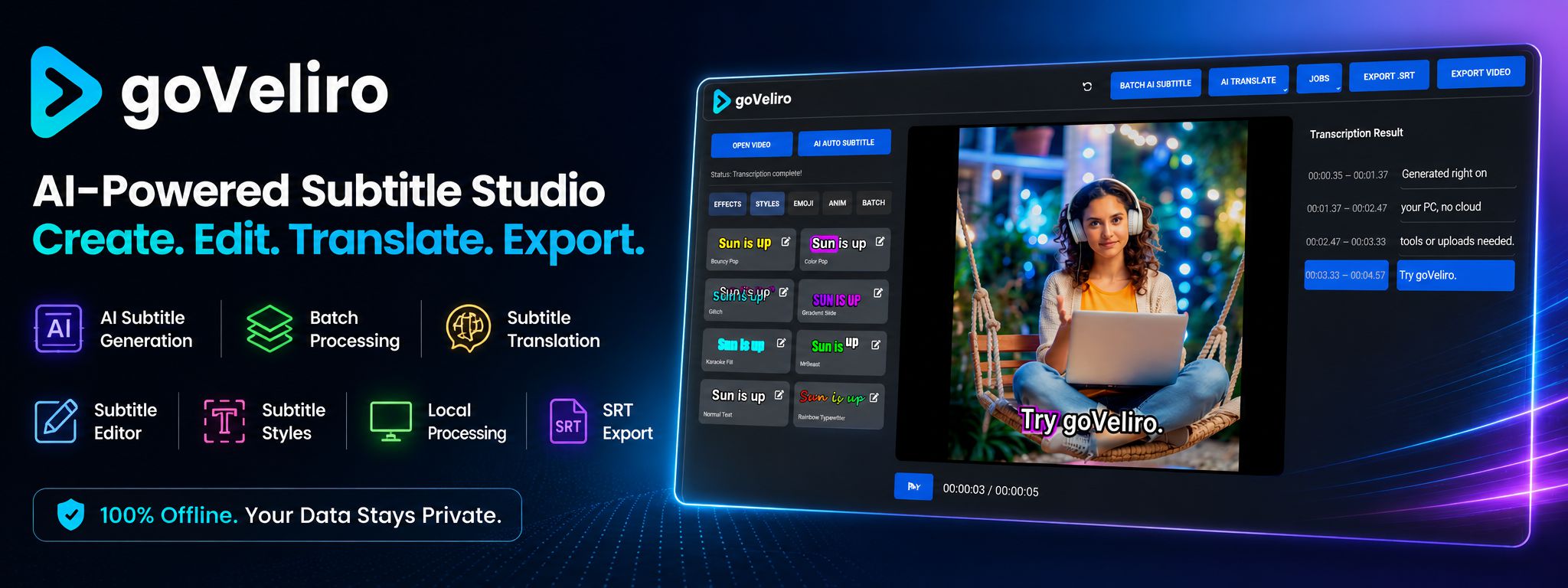
Local processing also means you don't have to depend on a web browser or an online transcription service. For creators who regularly produce podcasts, this can make the entire process much more predictable.